Device setup
IPTV Setup on Samsung and LG Smart TVs
Samsung and LG smart TVs run different systems, so their menus, app stores and account steps differ. This side-by-side guide shows what changes between them, and when an older TV needs a different approach.
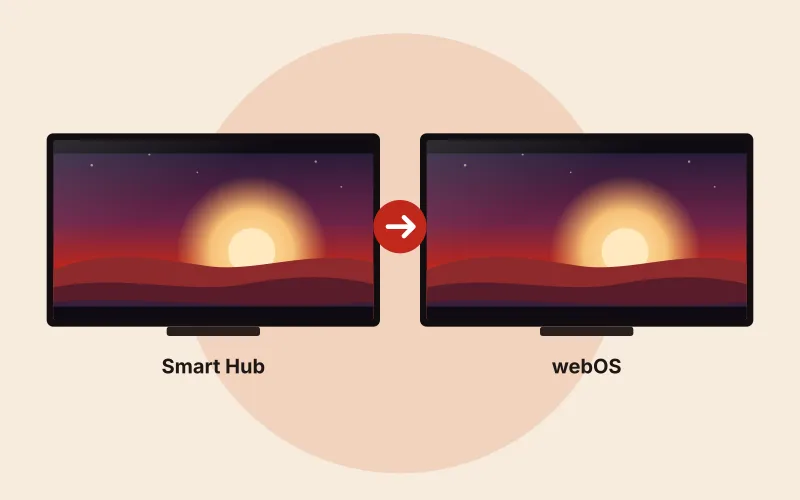
The short answer
On both brands: note the model and software version, update the TV, sign in to the manufacturer account, then install only the player app UK Stream Hub confirms from the TV’s own app store. Samsung uses Smart Hub (Tizen); LG uses webOS with its Apps menu or LG Content Store.
Samsung and LG side by side
| Step | Samsung Smart TV | LG webOS TV |
|---|---|---|
| Find model and version | Settings → All Settings → Support → About This TV | Press Mute three times, or Settings → … → TV Information (path depends on year) |
| Update software | Settings → Support → Software Update | Settings → All Settings → Support → Software Update |
| App store | Home → Apps (Smart Hub) | Home → Apps (webOS 22+) or LG Content Store (older) |
| Account needed | Samsung Account to download apps | LG account, plus accepting the User Agreements |
| If apps misbehave | Reset Smart Hub (removes downloaded apps) | Check network and LG service country; reset is a last resort |
The full step-by-step instructions, with links to each manufacturer’s help pages, are on our Samsung Smart TV IPTV setup and IPTV setup on LG Smart TV pages.
Before you start, on either TV
- Write down the exact model code and software (or webOS) version.
- Connect the TV to the internet, by cable if you can.
- Install any available software update.
- Sign in to the Samsung Account or LG account on the TV.
- Ask UK Stream Hub which player app is supported for that model, and whether it has its own fee.
Is my TV too old for a modern player app?
Samsung
Samsung’s UK guidance notes that Smart Hub arrived on its TVs in 2011 and changed significantly in 2015, so the steps differ between those generations, and TVs made before 2011 have no Smart Hub at all. Samsung also explains that an app may not appear in the store if a TV’s hardware cannot meet the app’s requirements.
LG
LG states that apps unsupported on your model simply do not appear in the LG Content Store, and that app availability varies by country, product and region. A TV whose LG services country is set incorrectly may also hide region-specific apps.
What to do if your TV cannot run the app
Rather than looking for unofficial workarounds, a separate streaming device plugged into HDMI is usually the cleaner option. Check compatibility with UK Stream Hub first, then see IPTV setup on Amazon Fire TV Stick.
A useful compatibility message
Sending the right details first time saves a back-and-forth. For example:
TV: Samsung (or LG), model code: __________
Software / webOS version: __________
Connection: Wi-Fi or Ethernet
Channels I most want: __________
Question: which player app is supported, and is there an app fee?
Common problems on both brands
- App missing from the store: check account sign-in, software version and (on LG) the services country, then confirm the supported app with UK Stream Hub.
- Not enough storage: remove apps you do not use.
- Playback stutters: follow the IPTV buffering guide and try a wired connection.
Menu names follow Samsung and LG’s own support pages and may differ slightly on your model. Install apps only from the official store, and never disable security settings to install software.
Official sources
Related guides
All guides · Plans · Devices · Free trial
-
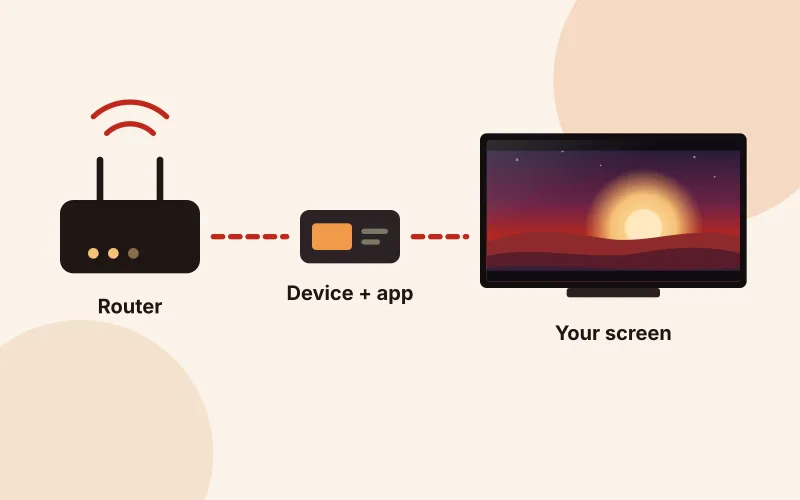
What Is IPTV? A Practical Guide for UK Viewers
Player apps, subscriptions, devices and connections explained in plain English. -
UK IPTV Prices: How to Compare Subscription Plans
Read totals and monthly equivalents correctly, and add the costs a price leaves out. -
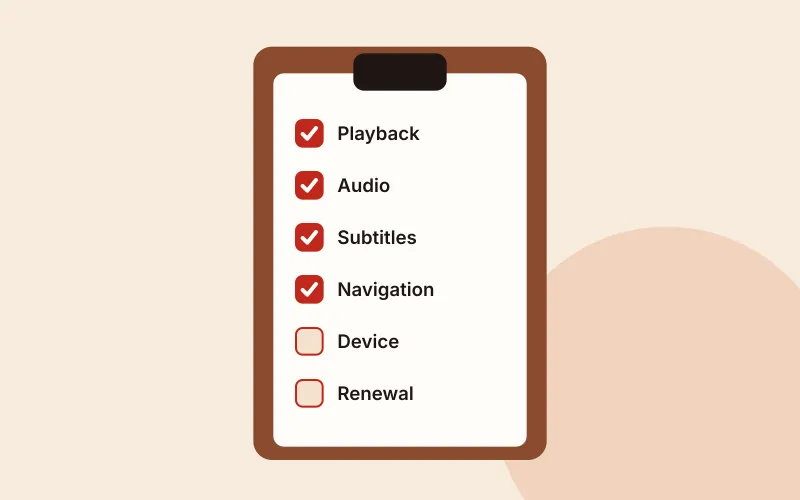
IPTV Free Trial UK: What to Check Before Choosing
Questions to ask first, then a timed checklist for testing a trial properly.