Device guide · Amazon
IPTV Setup on Amazon Fire TV Stick
IPTV setup on Fire TV Stick goes best in this order: connect the stick properly, check its software, use Amazon’s network tools, and install only the player app UK Stream Hub confirms for your Fire TV model.
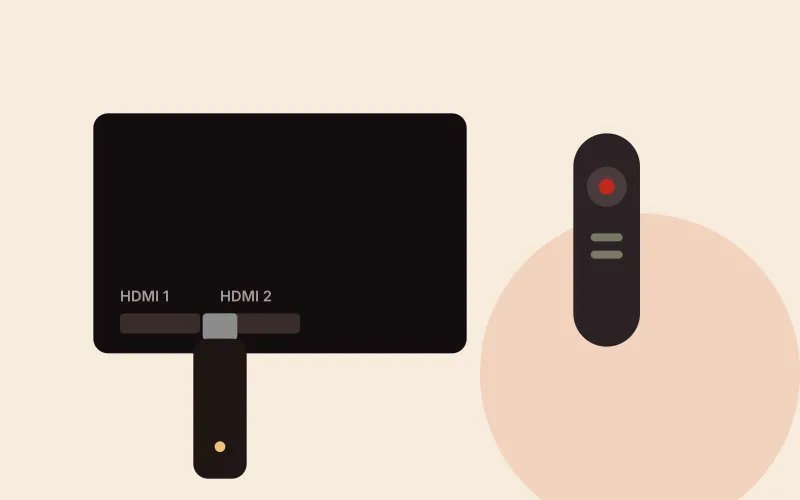
1. Connect it well
Plug the stick into an HDMI port on the TV and power it with the cable and adapter it came with. If Wi-Fi is weak behind the TV, the HDMI extender supplied with many sticks can move it away from the TV’s metal back panel. Some Fire TV devices need an Ethernet adapter for a wired connection.
2. Identify your device and Fire OS version
Go to Settings → My Fire TV (called Device & Software on some versions) → About. The About screen shows the device name (for example Fire TV Stick 4K) and the software version. Note both for your enquiry.
3. Update the software
On the same About screen, select Check for Updates (or Check for System Update). If an update has downloaded, choose Install Update and leave the stick plugged in while it restarts. Fire TV devices usually update automatically when idle.
4. Install the confirmed player app
- Ask UK Stream Hub which player app is supported on your Fire TV model and software version, and whether it has its own fee.
- From the Home screen, open Find → Search (or the search icon), type the app name and select it.
- Select Get or Download. Apps come from the Amazon Appstore and need you to be signed in to your Amazon account.
- Open the app and follow the activation steps UK Stream Hub provides.
Availability varies. Apps in the Amazon Appstore can differ by country, by Fire TV model and by Fire OS version. If you cannot find the confirmed app, tell UK Stream Hub which model and software version you have.
Stay with the official app store
Install player apps only from your TV’s or stick’s official app store. We do not provide instructions for installing unknown APK files, enabling unknown sources, or turning off security protections, and we do not recommend doing so. Treat an app as supported for this service only when UK Stream Hub confirms it for your exact device.
5. Troubleshooting
- Check network status: open Settings → Network and press Play/Pause on the remote. Amazon’s network status tool shows both the connection to your router and the router’s connection to the internet.
- Restart: unplug the Fire TV from power for about 10 seconds, plug it back in, then restart your modem and router if the problem continues.
- Weak Wi-Fi: move the stick and router closer if you can, use the HDMI extender, or try a wired adapter. See the buffering guide.
- One app misbehaving: go to Settings → Applications → Manage Installed Applications, choose the app and select Clear cache. Clearing data as well signs you out of the app.
- Update fails: check that there is enough free storage on the About screen and remove unused apps.
Check compatibility before ordering
Send UK Stream Hub your model and software version and ask which player app is supported on it. The message opens with blanks for you to fill in.
Ask about Amazon Fire TV Stick compatibilityRelated: Samsung Smart TV IPTV setup · IPTV setup on LG Smart TV · IPTV free trial UK
Related guides
All guides · Plans · Devices · Free trial
-
What Is IPTV? A Practical Guide for UK Viewers
Player apps, subscriptions, devices and connections explained in plain English. -
UK IPTV Prices: How to Compare Subscription Plans
Read totals and monthly equivalents correctly, and add the costs a price leaves out. -
IPTV Free Trial UK: What to Check Before Choosing
Questions to ask first, then a timed checklist for testing a trial properly.